
Route 53 - Inbound Resolver Endpoints
Dec 20, 2025Route 53 Inbound and Outbound Resolver Endpoints facilitate hybrid DNS resolution capabilities between VPC and On prem networks. This is the 1st part in a 2 part blog series where I will breakdown the functionality, show different architectures showcasing the latest enhancements to these components and also show tools and tips to troubleshoot common to complex issues faced by a lot a AWS customers.
This 1st part will cover Inbound Endpoints while the 2nd part will cover Outbound Endpoints.
Route 53 Inbound Endpoints:
These endpoints can be used to send queries for AWS DNS names or Route53 Private Hosted Zone DNS names to the VPC DNS Server from an on prem environment.
The VPC DNS Server which is also known as Route 53 VPC Resolver or AmazonProvidedDNS is available for all VPCs at the 2nd IP of the primary VPC CIDR or at 169.254.169.253 (IPv4) / fd00:ec2::253 (IPv6). If the VPC CIDR is 10.0.0.0/16 then the VPC DNS server is 10.0.0.2. The limitation is that this server does not accept any DNS queries coming from outside the VPC environment as per AWS Route 53 design.
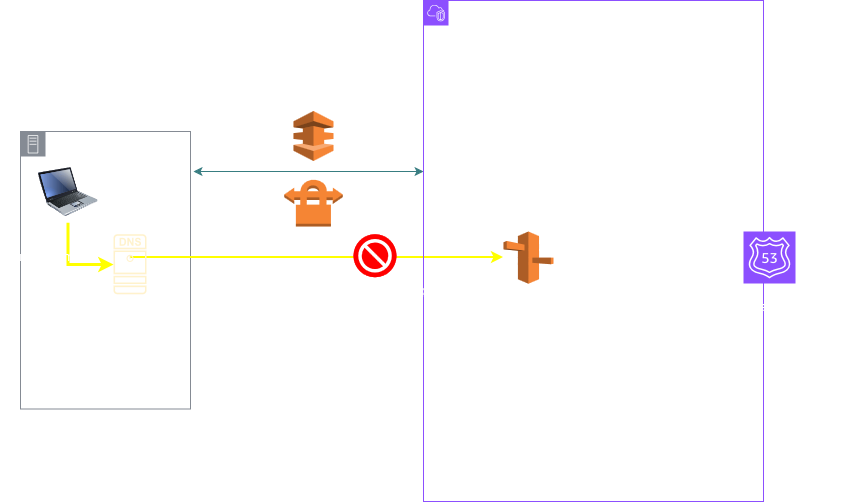
Hence these Inbound Endpoints can be leveraged to bring the queries from on prem to this VPC DNS Server. The on prem clients / local DNS servers need to send DNS queries to the Inbound Endpoints IP addresses which are just ENIs inside your VPC (also known as RNIs). The Inbound Endpoint then simply forwards the queries to the VPC DNS Server. The VPC DNS server allows these queries since they are now coming from an IP inside the VPC. The below diagram shows this architecture.
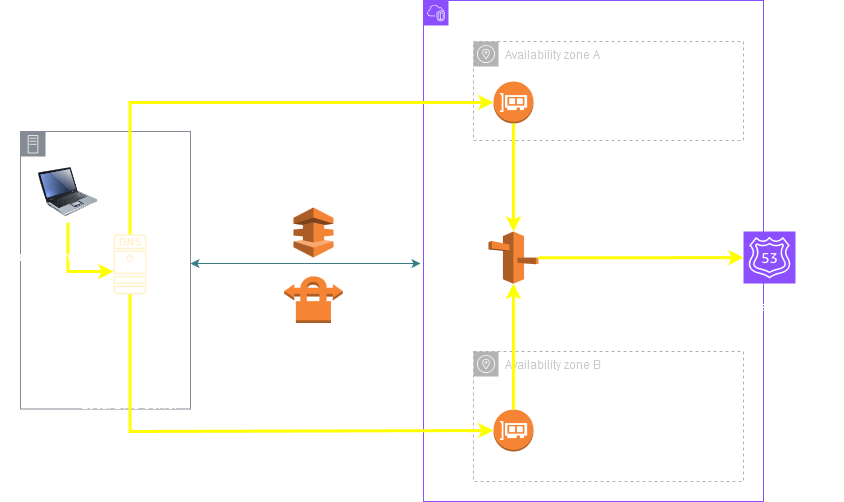
Once the query is received by the VPC DNS Server the resolution works based on normal rules:
- The VPC DNS server answers queries for any AWS DNS Names (See the AutoDefined Rules section in the Outbound Endpoints article)
- If there are any PHZs associated to the VPC matching the query the answer comes from the PHZ. For using a PHZ the VPC attributes
enableDnsHostnamesandenableDnsSupportmust be set to True. - If there are any Resolver Rules configured matching the query, then the query is forwarded to the target DNS server defined in the rule (This will make more sense when I cover Route 53 Outbound Endpoints later in this article)
- If the query does not match any AWS DNS Name, PHZ or Resolver Rule then the query is resolved using normal recursion starting with the Root Servers on the Internet.
Important Note: The most specific match is preferred.
For example if the query is prod.sales.example.com and you have the following associated to your VPC:
1. PHZ: sales.example.com
2. Resolver Rule: example.com
Then the PHZ will be preferred. However if there is an overlap then the Resolver rule takes precedence. For example if the query is still: prod.sales.example.com and you have the following overlapping setup:
1. PHZ: sales.example.com
2. Resolver Rule: sales.example.com
Then the Resolver Rule takes precedence.
Setting up Inbound Endpoints:
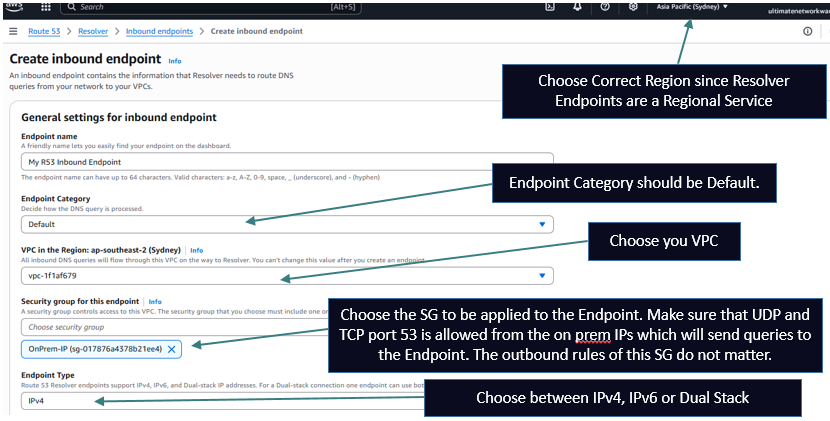
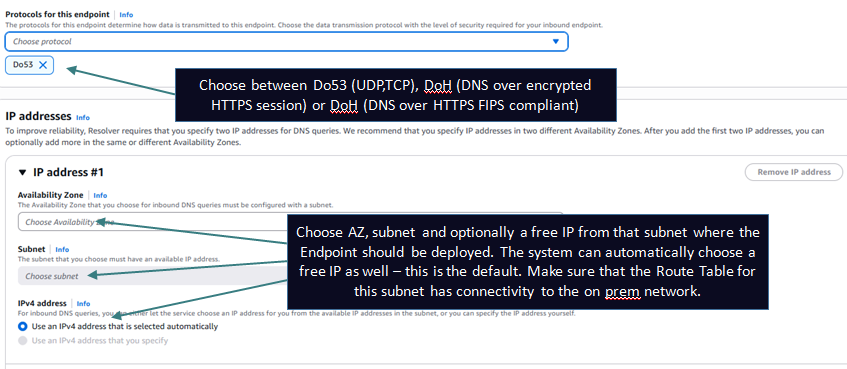
Now let's check out how to setup the Inbound Endpoint and the on prem DNS server for sending queries to the Endpoint. There are now 2 ways to set this up. But up until June 24, 2025 there was only 1 type of Inbound Endpoint which could only accept Recursive Queries and hence there was only one way of setting up the on prem DNS server i.e. forward queries to the Inbound Endpoint IPs using conditional forwarders. This would ensure that only recursive queries are sent to the Inbound Endpoints.
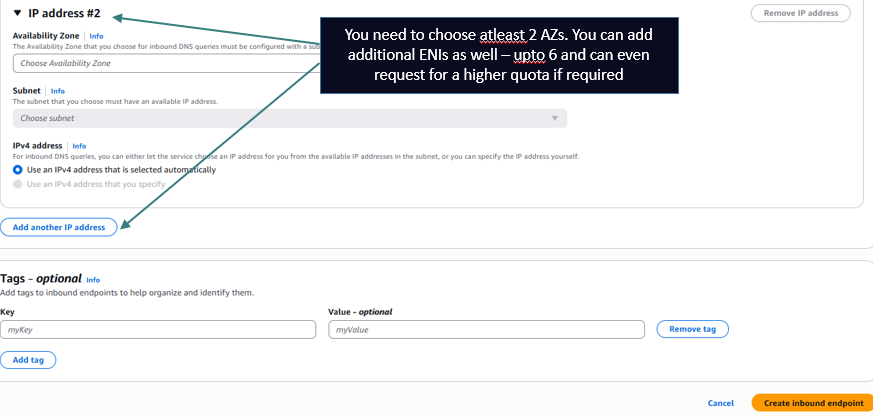
The below pictures shows how to create an Inbound Endpoint of type Default which was the only option till June 2025.
Setting up the on prem local DNS server. (This example is for a BIND server).
If the same server is hosting the Authoritative parent domain lets say onprem.com and you want to foward a subdomain aws.onprem.com which is configured in Route 53 to the Inbound Endpoints:
Inside the zone file for onprem.com add the delegation and glue records:
aws NS endpoint1.onprem.com
aws NS endpoint2.onprem.com
endpoint1 A <Inbound Endpoint IP 1>
endpoint2 A <Inbound Endpoint IP 2>
Then add a forward zone definition for the sub domain:
zone "aws.onprem.com" IN {
type forward;
forwarders { <Inbound Endpoint IP 1>; <Inbound Endpoint IP 2>; };
forward only;
};If its just a Resolver on the onprem side and onprem.com is hosted on a different onprem server (192.168.1.53) then you would do something like this on the Resolver:
zone "onprem.com" IN {
type forward;
forwarders { 192.168.1.53; };
forward only;
};
zone "aws.onprem.com" IN {
type forward;
forwarders { <Inbound Endpoint IP 1>; <Inbound Endpoint IP 2>; };
forward only;
};
I will cover the 2nd type of Inbound Endpoints which support Delegation in a later section of the article.
Sample Logs:
Resolver Query Logging: (Go to VPC Resolver --> Query Logging --> Configure Query Logging --> Choose where you want to send the logs CloudWatch/S3/Firehose --> Create a new or select an existing log group / bucket / delivery stream and select the VPC for which you want to enable Query Logging).
All queries coming to .2 will get logged here. The logs also indicate if the query came through an Inbound Endpoint or was subjected to any configured DNS Firewall or was it sent towards any configured Outbound Endpoints.
Example Log 1 showing a simple query received through an Inbound Endpoint.
Corresponding Flow Logs for the Endpoint ENI:
Keep in mind that the part between Endpoint and .2 does not get captured in VPC Flow Logs

"version": "1.100000",
"account_id": "592752082067",
"region": "ap-southeast-2",
"vpc_id": "vpc-1f1af679",
"query_timestamp": "2025-12-10T13:29:28Z",
"query_name": "ilovedns.online.",
"query_type": "A",
"query_class": "IN",
"rcode": "TIMEOUT",
"answers": [],
"srcaddr": "172.31.6.52",
"srcport": "42488",
"transport": "UDP",
"srcids": {
"instance": "i-04eae2cf1e1b5aa0a"
}
}
TroubleShooting Tools and Tips:
1. Check your Inbound Resolver Endpoint health status. It should in Operational status. Sometimes you may see the Auto Recovering status for the Endpoint and/or datapoints in EndpointUnhealthyENICount CloudWatch metric which means that the endpoint is trying to recover one or more ENIs of the endpoint. The most likely reasons are that one or more ENIs are experiencing a very heavy query volume or receiving some strange query patterns. This should get sorted quickly as the Endpoint will rotate the ENI automatically and it does so with care i.e it won't do this to all ENIs at the same time which means that your endpoint will be available although at a reduced capacity briefly. If this is happening quite frequently then analyze the query volume/patterns by setting up Resolver Query Logging.
However if you see Action Needed status check if the endpoint has at least 2 ENIs associated to it or not (They could been deleted through the VPC console or you ran out of free IPs in the subnet).
2. Check Query Volume and Capacity using the below CloudWatch metrics. The public documentation says that each ENI can take upto 10,000 UDP queries per second but this figure depends on certain factors like type of query, size of the response, health of the target name servers, query response times, round trip latency, and the protocol in use (UDP vs TCP). This figure is also affected by Connection Tracking. To remove Connection Tracking from the equation simply add Inbound and Outbound rules allowing TCP/UDP port 53 from 0.0.0.0/0 on the Security Group associated to the Inbound Endpoint. (Check the Load Testing section below)
- InboundQueryVolume
- ResolverEndpointCapacityStatus: The metric indicates the current capacity utilization state where: 0 = OK (Normal operating capacity), 1 = Warning (At least one elastic network interface exceeds 50% capacity utilization), and 2 = Critical (At least one elastic network interface exceeds 75% capacity utilization). Valid statistics: Maximum
3. Query the Inbound Endpoint IPs directly bypassing the local DNS server and pay close attention to the status code especially in the dig output (NOERROR/NXDOMAIN/SERVFAIL).
dig <domain> @<inbound endpoint ip>
nslookup <domain> <inbound endpoint ip>
- If the query times out instead it indicates there are connectivity issues:
- Check ingress Security Group rules of your Inbound Endpoint. The outbound rules don't matter
- Check inbound NACL rules on the subnets of the Inbound Endpoint
- Check routing and connectivity - VPN/Direct Connect/TGW configuration
- You can check VPC Flow Logs of the Inbound endpoint ENIs. Keep in mind that only the query from on prem to Inbound Endpoint ENI will show in the VPC Flow Logs. The part where the Inbound Endpoint forwards the query to the VPC DNS Server (.2) is not captured in VPC Flow Logs.
- You also have the option of turning on Resolver Query Logging which logs every query received by the VPC DNS Server.
- If you get a unexpected response or status code in the dig output check how the VPC DNS Server is configured to handle the query:
- Most specific PHZ/Resolver Rule wins.
- If PHZ and Resolver Rule overlap then Resolver Rule wins.
- If the query is supposed to get answered through a Resolver Rule you will need to follow the steps to troubleshoot Outbound Endpoints (later in this article)
- Check if a Route 53 profile is applied to the VPC and then check what resources it applies to your VPC
- Check if a PHZ is associated to your VPC from another account (These won't show up in the console. Use the AWS CLI command: aws route53 list-hosted-zones-by-vpc --vpc-id <vpc id> --vpc-region <region id>
- If the query does not match any PHZ/Resolver Rule check if the query can be resolved on the Internet through normal recursion.
Load Testing:
Here are some test results for better understanding the 10000 qps per ENI limit:
I first created a file and added some 40 to 50 domain names:
# cat r53demoinstagram.com Atwitter.com Ax.com Acisco.com Amicrosoft.com Aubuntu.com Acheckpoint.com A
..................
Next I used this command for generating a DNS query load test:
dnsperf -d r53demo -s 172.31.15.239 -l 10 -q 100
-d: To specify the file with the domain names (The tool keeps iterating over the list)
-s: One of the IPs in the Inbound Endpoint
-l: Run for 10 seconds
-q: Stop sending queries when 100 outstanding DNS queries are reached.
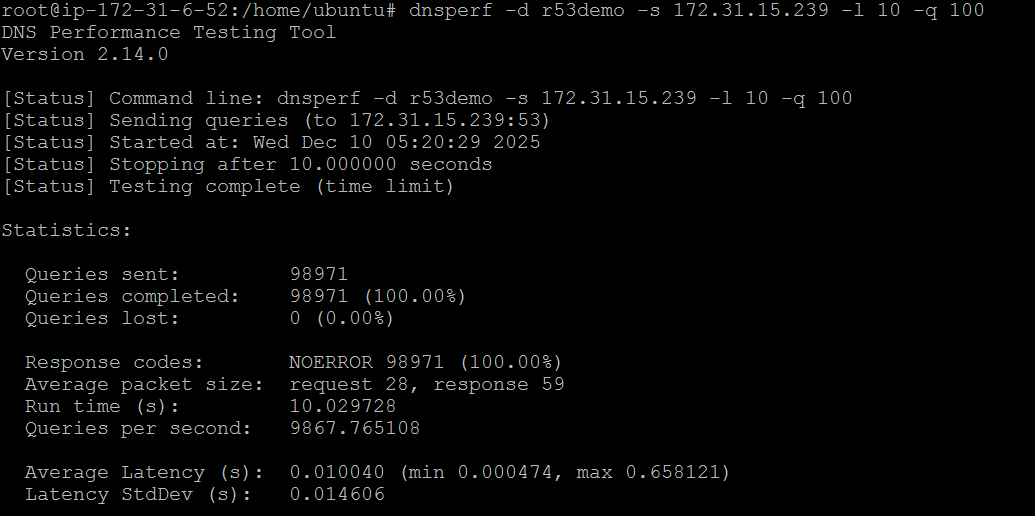
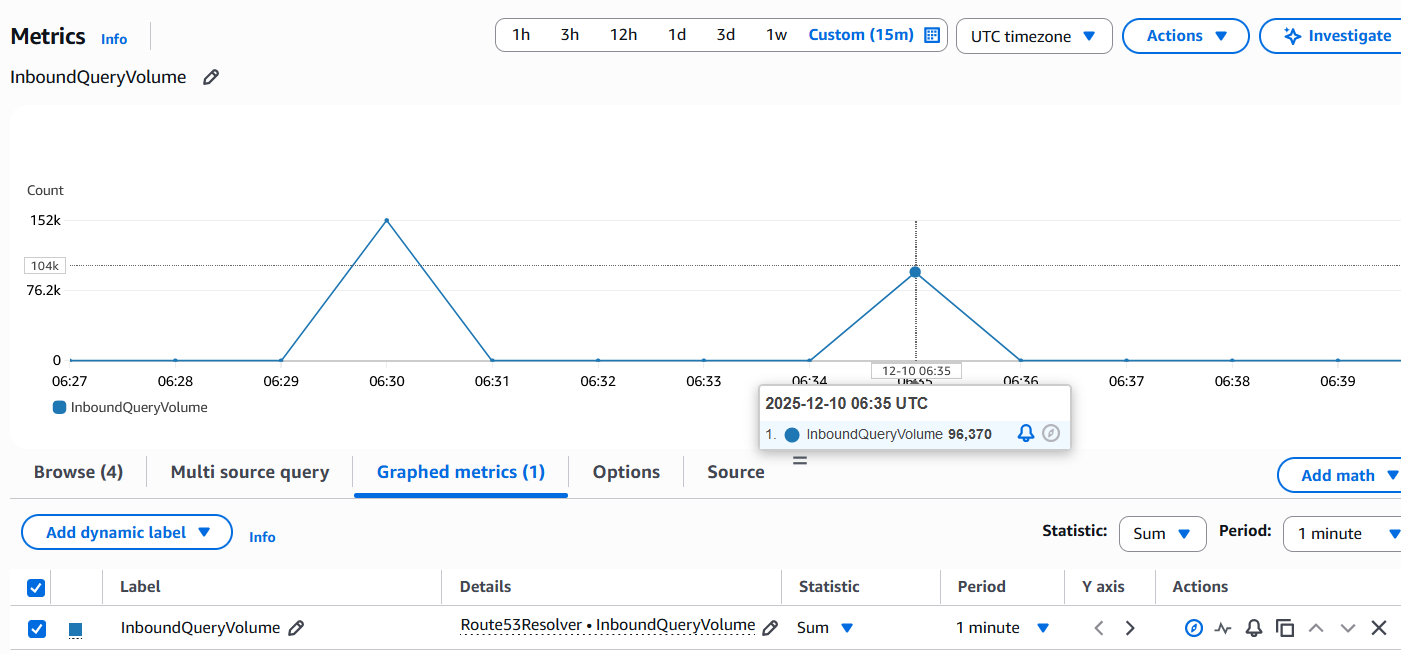
As you can see no queries were lost and we achieved a qps of 9867. Question is why did we achieve this result close to the 10000 qps limit. To answer this we need to understand how the load generator generates the load - Did it uniformly send 1000 concurrent queries per second for 10 seconds? Looking at Cloud Watch metrics is not enough to see the per second view. The most granular you can go is 1 minute SUM and the below screenshot shows a figure of 98826 for the 1 minute period at 05:20 at which the test was run.
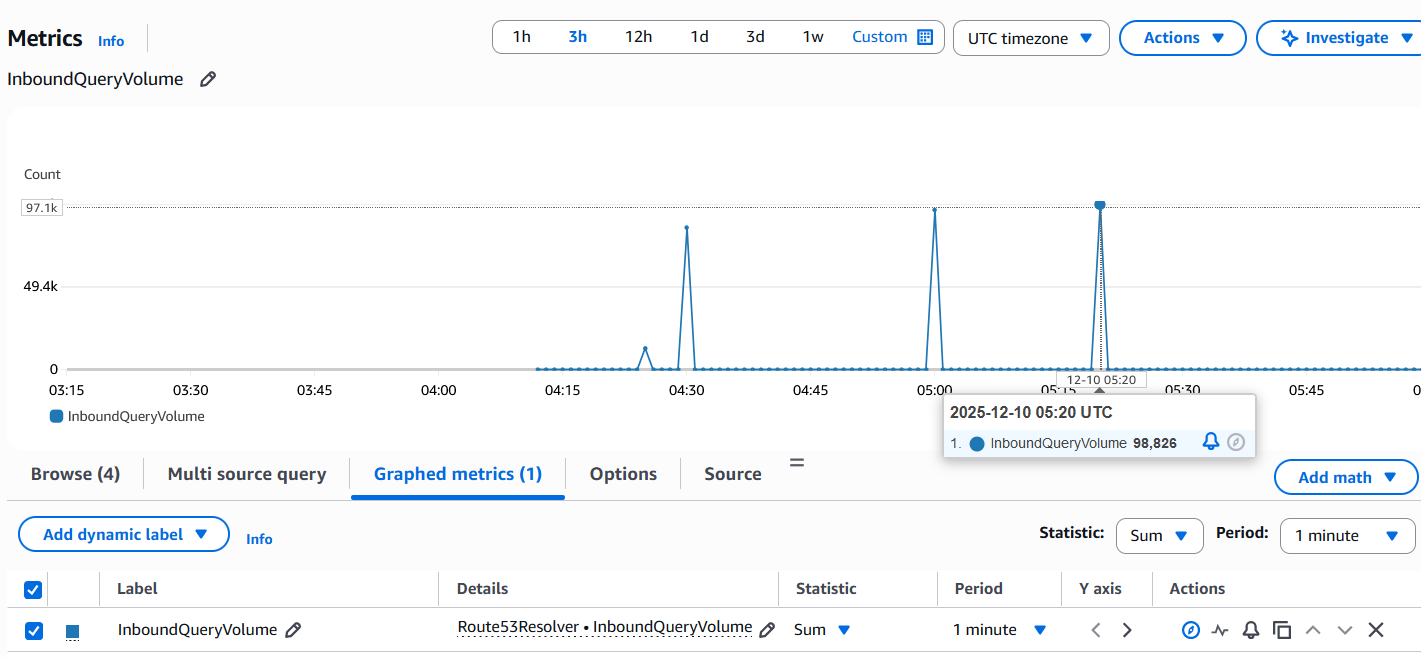
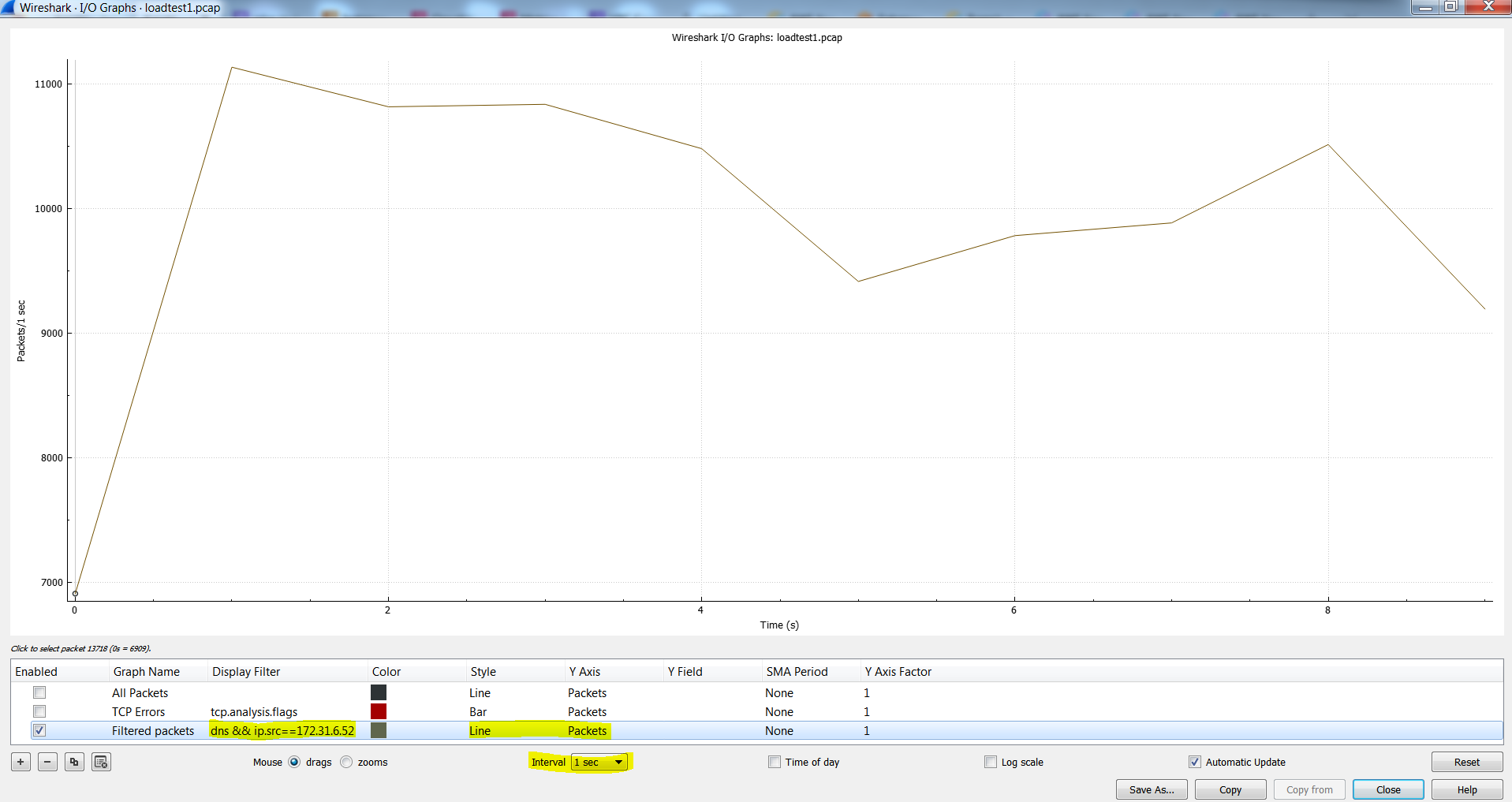
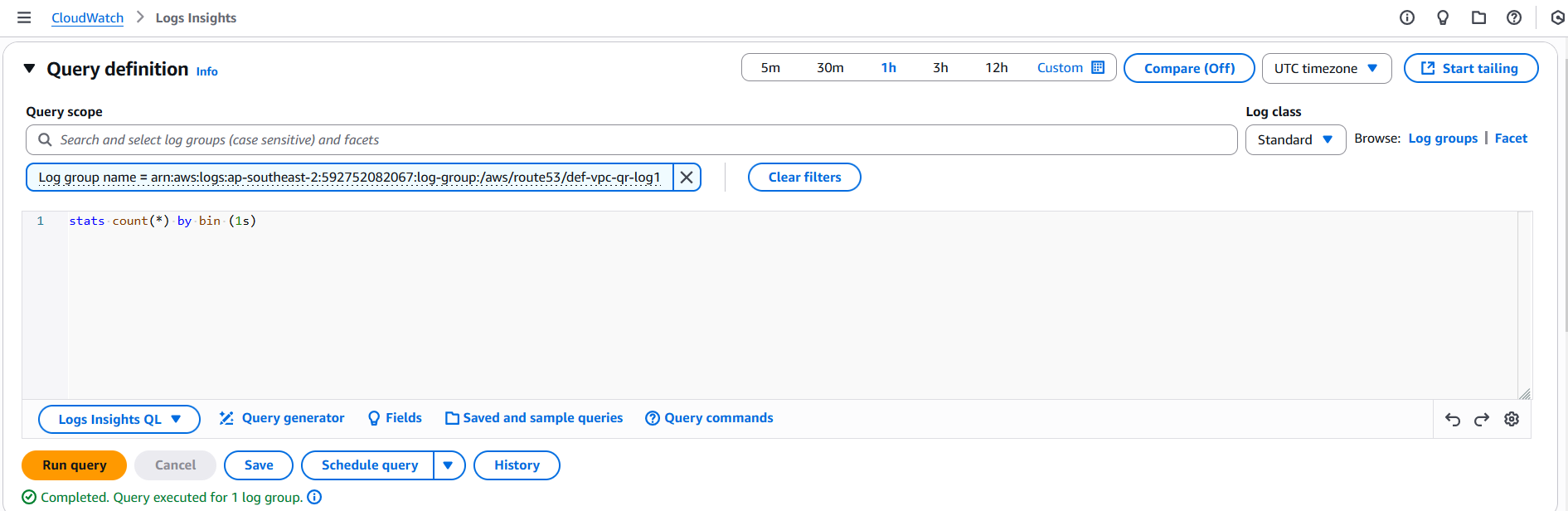
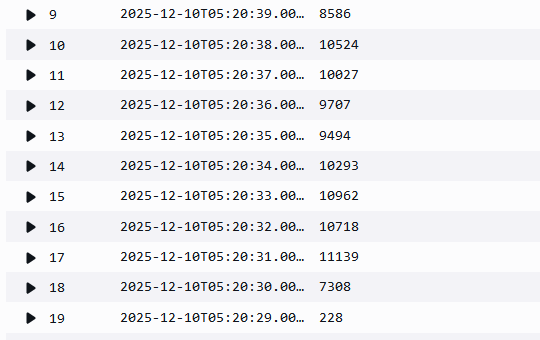
You may do 98826 / 60 = 1647 qps which is well below the limit of 10000 qps but that's like assuming we got 1647 qps uniformly for all the 60 seconds of the minute whereas all these queries took place within 10 seconds and there was 0 query volume during the rest of the 50 seconds. So we need to rely on other tools to see the per second view like pcaps or Route 53 VPC Resolver Query Logging. Here is a pcap taken on the client where the load was generated:
This also ties up with the Resolver Query Logs:
The reason no queries failed and we reached almost 10000 qps was because of the -q 100 option in the command (Its the default even if we don't type it in). It kind of controls the generators sending rate. When it reaches 100 queries where the responses are yet to be received it stops sending more concurrent queries. It starts sending more as and when the responses are received. As the endpoint supports upto ~10000 qps it responds at that rate thus indirectly controlling the sending rate of the generator.
Now I am going to send a new load with the -q option set to 65535 (max supported by the tool per thread - as of now using 1 thread (-T 1 is default) is enough)
dnsperf -d r53demo -s 172.31.15.239 -l 10 -q 65535
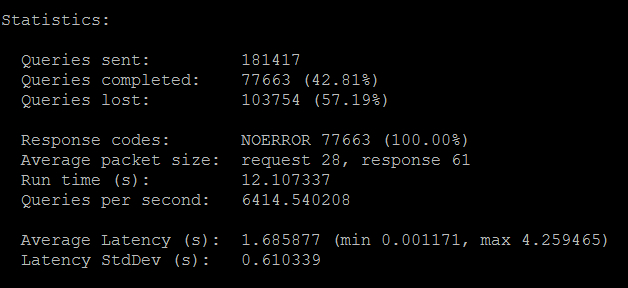
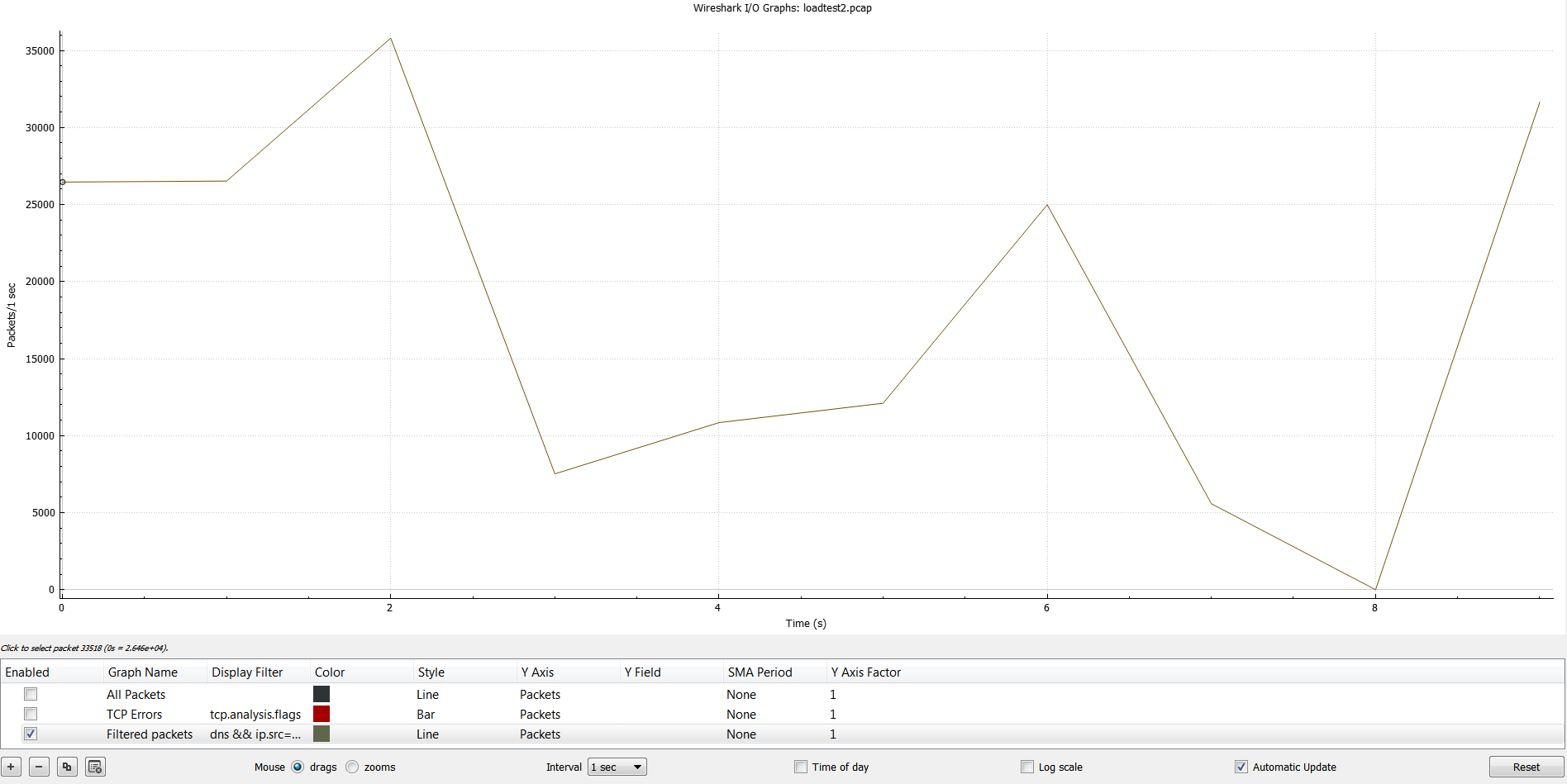
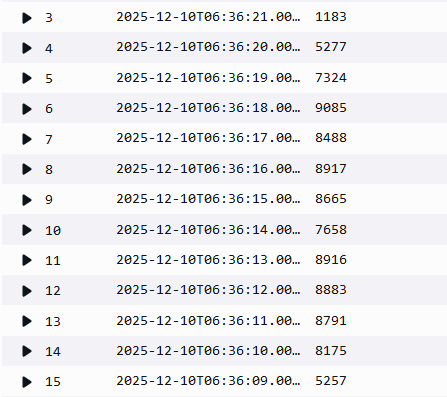
Now this time we can see the tool sent a much higher load i.e 181417 queries as compared to 98971 queries from the previous test. Out of these 103754 failed (timed out) and 77663 succeeded with a query rate of 6414 qps. I did see close to 9500 qps as well in my testing but the main point is that this time we let the load generator push a higher per second concurrent load and we can see that the endpoint was not able to keep up. In the below screenshot we can see CloudWatch and Resolver Query Logs only recorded ~96000 queries but the Wireshark capture taken on the load generator shows the per second distribution of the 181417 queries that were sent. So this clearly shows that Route 53 endpoint was not able to handle that higher than 10000 qps volume.
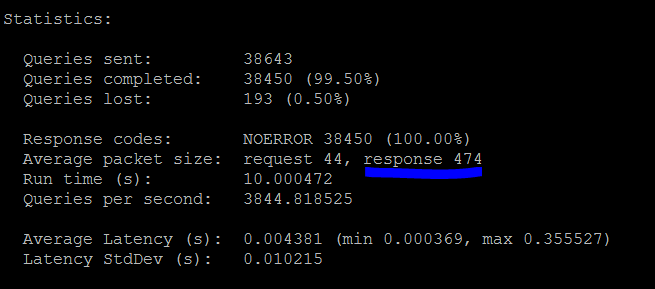
As per the documentation this 10000 qps limit can actually be much lower depending on factors listed above. Here is another load test with some queries which had larger response sizes and I could only achieve a qps of 3844.
Delegation Support on Inbound Endpoints:
Before June 2025, Inbound Endpoints only supported recursive queries/forwarding.
This means that you could not create a PHZ as a subdomain of a domain hosted on an on prem server. You could only setup a conditional forwarder on the onprem server for the PHZ domain but not a subdomain delegation. The following pictures describes this limitation:
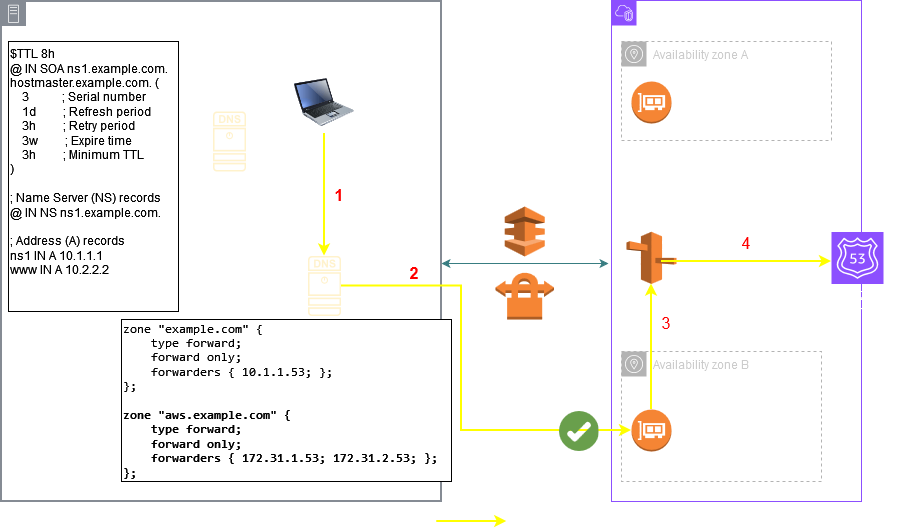
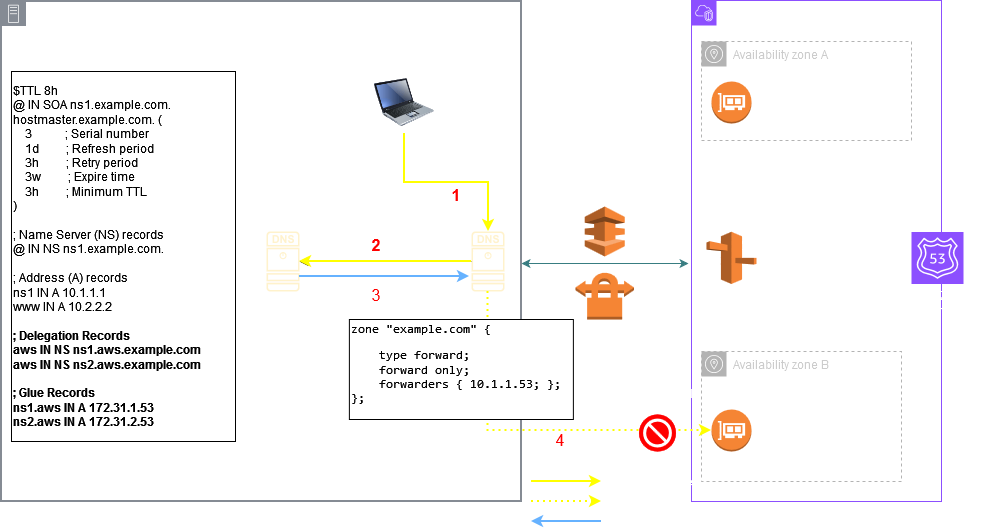
But now you can create a delegation on your parent zone hosted on the on prem server as depicted above for a subdomain hosted in a AWS PHZ. This means that the Inbound Endpoint should support Iterative Queries so now you need to setup the Inbound Endpoint as Delegation type as shown below:
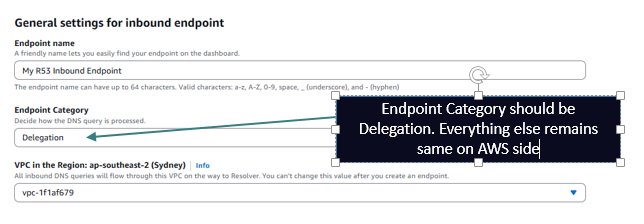
The setup on the onprem should now be a delegation instead of forwarding. On the server where the parent domain is configured add the delegation records like below:
aws NS endpoint1.onprem.com
aws NS endpoint2.onprem.com
endpoint1 A <Inbound Endpoint IP 1>
endpoint2 A <Inbound Endpoint IP 2>
EDNS Considerations:
As of this writing the max-udp-size on the Inbound Endpoints is 4096 (This is a BIND configuration directive - I am not suggesting AWS is using BIND - I just mean equivalent of this option). This means that for onprem clients who send queries with a large ENDS buffer size like 4096 the UDP response from the Inbound endpoint can be as large as 4096 bytes.
If the connectivity between on prem and AWS has a lower MTU it can lead to fragmentation of larger than MTU UDP responses and some firewalls (maybe there is one on the onprem side ) are known to drop UDP fragments. In fact the MTU of the Inbound Endpoint ENI is 1500 and hence fragmentation will take place.
Now, if the EDNS buffer size of the client is lower than the response size then the reply from the Inbound Endpoint will be truncated and hence the client will retry over TCP and again if the MSS is not set correctly it can lead to packet loss at a lower MTU hop.
Querying Inbound Endpoint for large record:
# dig t1.ultimatenetworkwarrior.com +qr +bufsize=2000 @172.31.15.239; <<>> DiG 9.18.39-0ubuntu0.24.04.2-Ubuntu <<>> t1.ultimatenetworkwarrior.com +qr +bufsize=2000 @172.31.15.239;; global options: +cmd;; Sending:;; ->>HEADER<<- opcode: QUERY, status: NOERROR, id: 8776;; flags: rd ad; QUERY: 1, ANSWER: 0, AUTHORITY: 0, ADDITIONAL: 1;; OPT PSEUDOSECTION:; EDNS: version: 0, flags:; udp: 2000 <--- Setting EDNS buffer size to 2000 in the query packet; COOKIE: 5d84787ed937c524;; QUESTION SECTION:;t1.ultimatenetworkwarrior.com. IN A;; QUERY SIZE: 70;; Got answer:;; ->>HEADER<<- opcode: QUERY, status: NOERROR, id: 8776;; flags: qr rd ra; QUERY: 1, ANSWER: 94, AUTHORITY: 0, ADDITIONAL: 1;; OPT PSEUDOSECTION:; EDNS: version: 0, flags:; udp: 2000 <--- EDNS buffer size in the reply packet mimicing the size from the query - However full 4096 size is also supported;; QUESTION SECTION:;t1.ultimatenetworkwarrior.com. IN A;; ANSWER SECTION:t1.ultimatenetworkwarrior.com. 0 IN A 10.1.1.84t1.ultimatenetworkwarrior.com. 0 IN A 10.1.1.73t1.ultimatenetworkwarrior.com. 0 IN A 10.1.1.16.........(discarding the remaining records for brevity);; Query time: 3 msec;; SERVER: 172.31.15.239#53(172.31.15.239) (UDP) <--- UDP;; WHEN: Wed Dec 10 11:25:06 UTC 2025;; MSG SIZE rcvd: 1562 <--- Large response received over UDP
Packet capture taken on client shows fragmented packets:

Conclusion:
Route 53 Inbound Endpoints are a key component to enable hybrid DNS solution on AWS. Route 53 has also released a new feature: Global Resolver which can be used to achieve the functionality provided by Inbound Endpoints. Please checkout my article on Global Resolver to see if that service fits your requirement better than using Inbound Endpoints.
Thank you for reading and see you in part 2 of this article!!